Google Nest cameras make old security systems obsolete
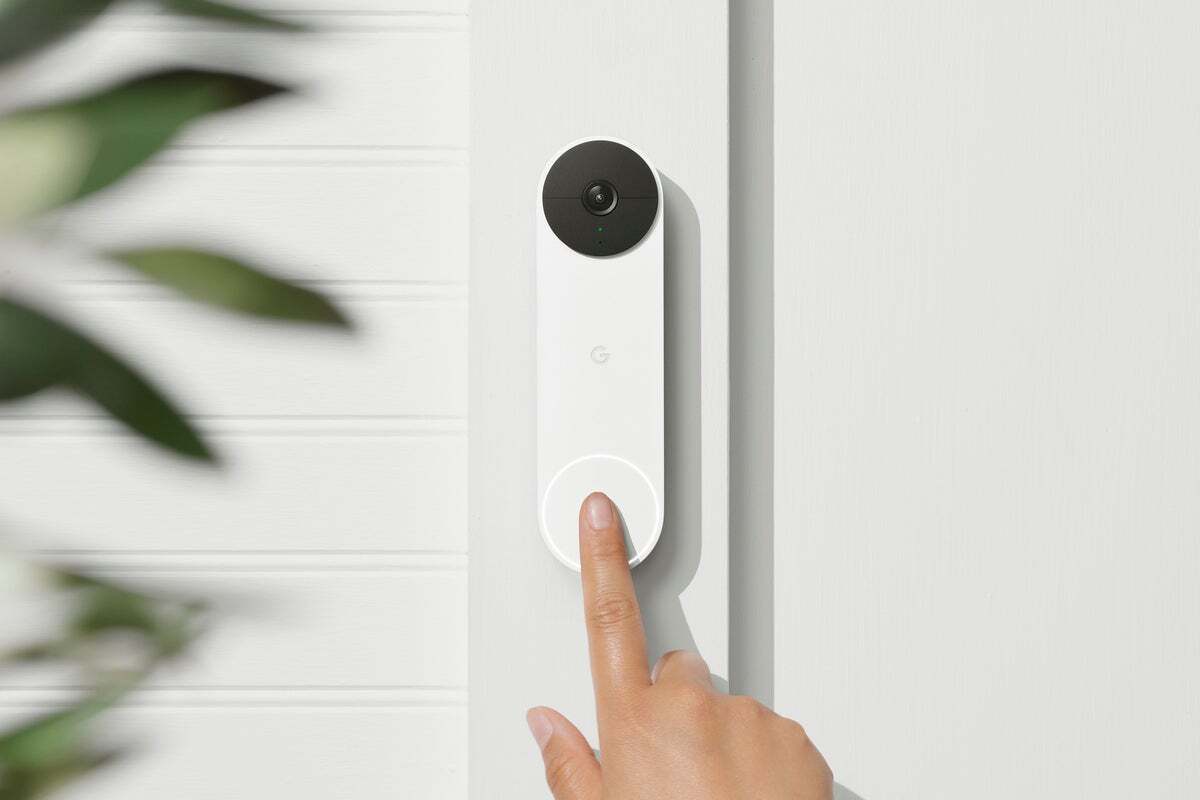
Google Nest Doorbell (battery)
I’ve been using many different security cameras over the last few years but they’ve been even more useful while working from home with so many deliveries coming and going. I’ve been testing two new cameras from Google over the last six weeks to see how they stack up against the competition.
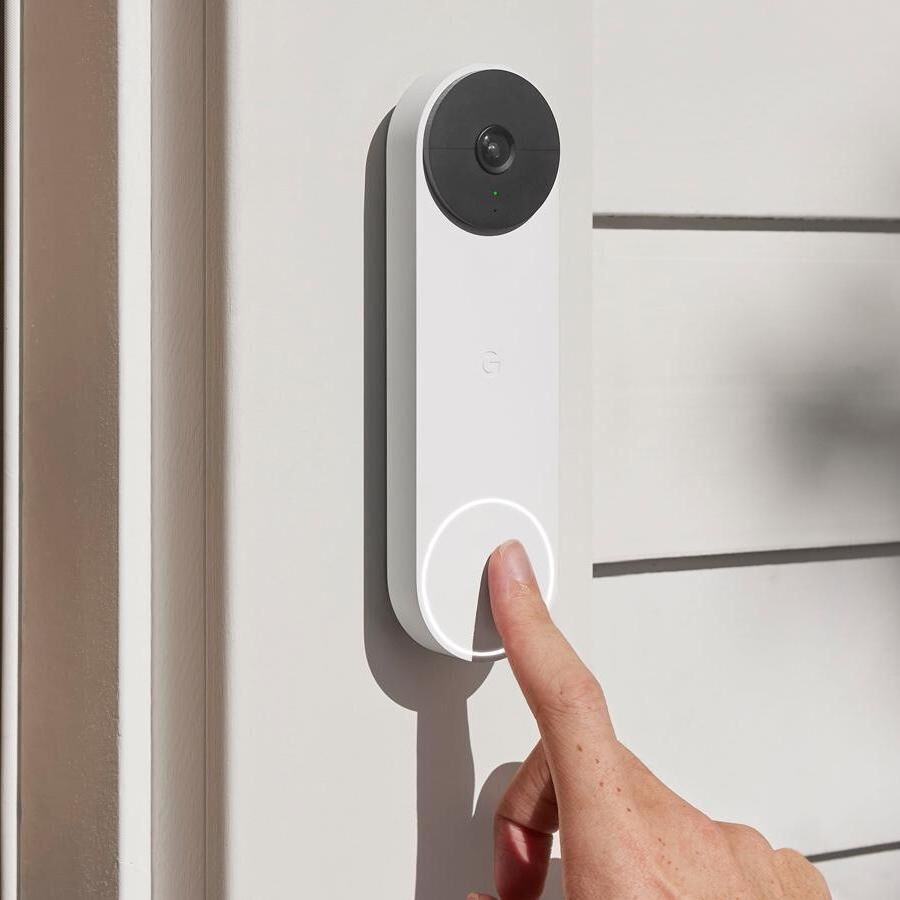
The new Nest Doorbell has a built-in battery so you don’t need to wire it into the mains power although you can if you want. This means you can simply replace it with your existing doorbell or use it without wires if you don't want the hassle of wiring power to your front door.
After eight weeks of use, my Nest Doorbell was down to 12% on the battery. The Google Home app says I have another six days left before I’ll have to charge it but this is just an estimation based on historical activity. Of course, if you wire it you won’t have to worry about taking out the battery every couple of months and charging it. Since it has a built-in battery, you have a backup if the power fails. There’s no way to store footage on an SD card but there is a certain amount of local backup.
Battery usage will vary greatly depending on how you set it up. The ‘More recording’ option will use the most battery but provide the best image quality, longer event videos and shorter time between events. While ‘More Battery’ will extend battery life, with high-quality video, shorter event videos and longer time between events. Google says you should be able to get up to four months using this option. The ‘Default’ option is a balance between the two.
You can change video quality (Max or High), event length (max 2 minutes), wake up sensitivity and if you want, video history. You can choose not to enable video history and turn off notifications and only view live video.
You get up to three hours of video history with no subscription necessary and in general, this was more than enough for my needs.
Getting both Nest Cameras up and running only takes minutes. You’ll need a Google account and the Google Home app. The latter contains all of the options and settings for all of your installed Google Home compatible devices. While it’s great to have all of these smart devices in the one ‘Home’ it can be a little time consuming getting to the one device you want to use. I preferred the original Nest app which is now obsolete for just dealing with Nest products. It would be great if you could have both.
It would also be nice to have a way of viewing the cameras in a web browser. This would allow you to view streams on a PC or Mac or on a device that didn’t have Google Home on it.
When you enable push notifications you can choose which events you want to be notified about. These include when the camera sees People, Animals, Vehicles, Motion or even Packages. The latter has been super handy for me. You will get a notification saying there’s a package and another one when it’s removed.
If you have a Nest Hub you can set up the new Nest Doorbell to announce and automatically display a live stream of the camera when the bell button is pushed. This works great as long as the person calling actually pushes the button. You can also ask Google Assistant to show you the live stream from the camera too if you just want to check the camera.
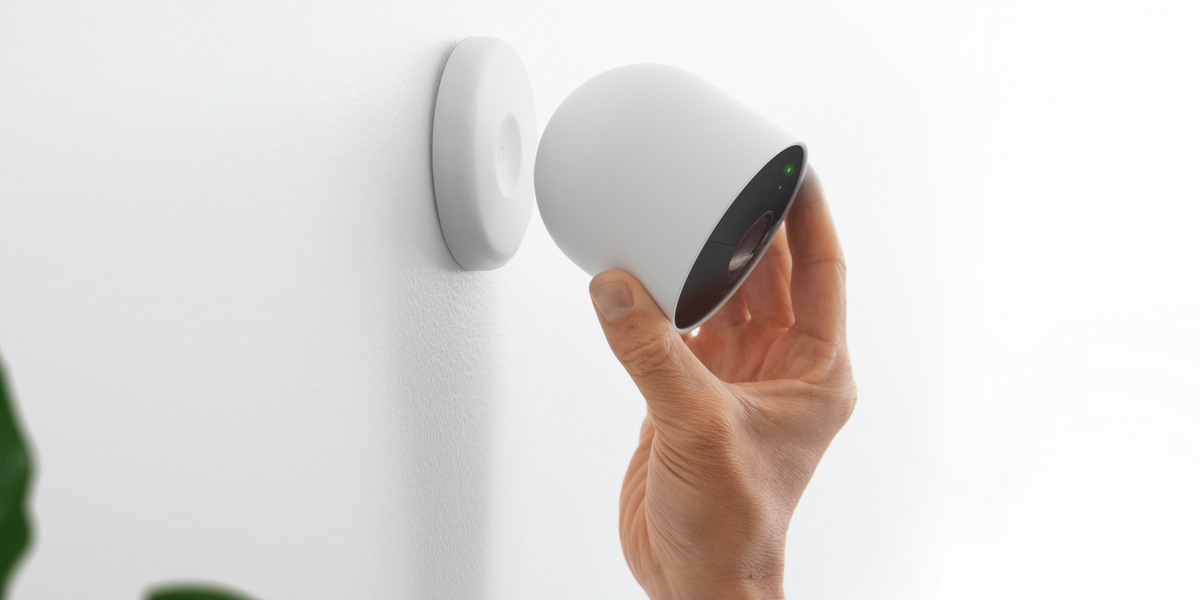
You can create activity zones within the new Nest camera's view. This works best when used with the broader view you get with the Nest Camera (Battery). I had it facing out from the front of my house onto the front garden and created an activity zone for the garden and then one at the door but not the road. This allowed me to isolate the areas I wanted to get notifications about rather than every passerby on the road.
Unlike other doorbell cameras I’ve used, the Nest Doorbell’s sensor is in portrait mode. This worked brilliantly in my installation, allowing me to see everything from incoming callers faces to parcels left on the ground in my porch.

One of the most important things for me is that I get a notification immediately and in general, the Nest Doorbell and Nest Camera didn’t have much of a delay. I did experience some connectivity issues during testing but that was when I was out and about where the data connection on my phone may have been the issue.
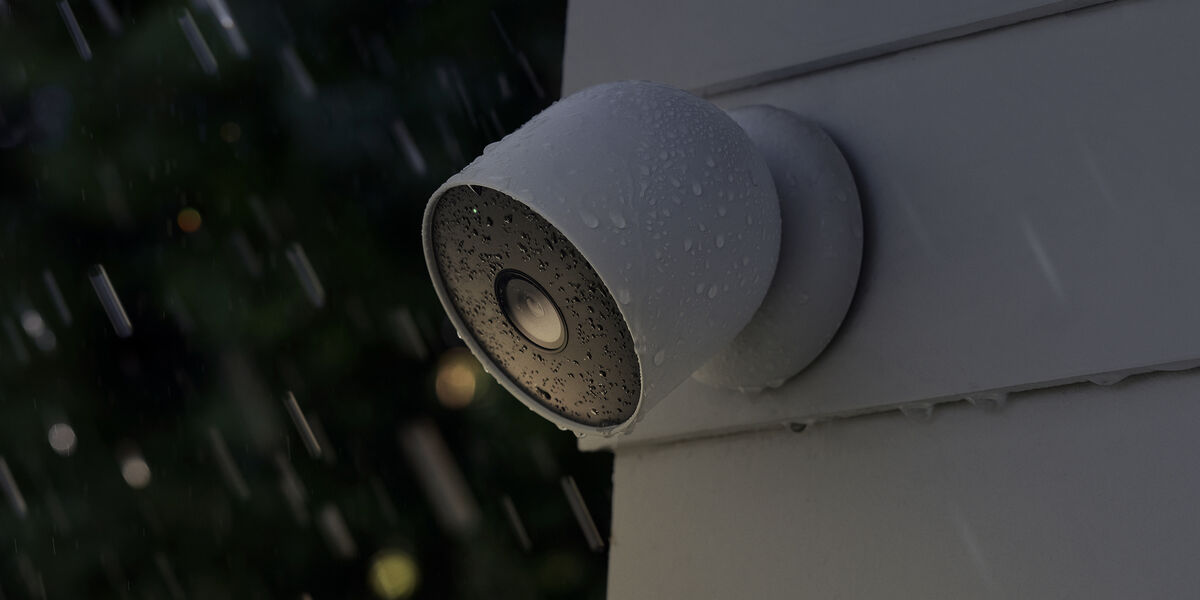
Both cameras feature local storage which means that if the electricity goes down, the video will still get captured and uploaded to the internet when a Wi-Fi connection is restored. However, if you want/need more than three hours of video history, you’ll have to pay for a Nest Aware subscription for €5/ month for 30 days of event video history or €10 for 60 days of event video history plus 10 days 24/7 video history. The 24/7 only works with the Nest Camera as long as it’s wired to power using the optional power adaptor (5m and 10m options are available). The Nest Cam (battery) can also be mounted indoors using the optional Nest Stand Mount (The big bonus with either subscription plan is that it covers all of your Nest Cameras.
One pretty cool feature is the ability of the new Nest Cameras to recognise faces and objects. This is done on-device and is fully secure. You can save faces it recognises from captured video and then it can announce who’s at the door. This was a little hit or miss for me but to take full advantage you’ll need to pay for the Nest Aware subscription.
You can also set up quick responses for when you’re busy or away saying things like “you can just leave it. Thanks!”
Overall, both the Nest Cam (battery) and Nest Doorbell (battery) provide all of the essential features and flexibility without a subscription. If you need a subscription, €5 a month is reasonable considering the extra features and benefits it has to offer.
CONNECT WITH US TODAY



Be the first to know the latest news and updates